Showing posts with label Metrobank. Show all posts

Wednesday, August 21, 2019

Meralco Bill Online: View and Download Your Bill On Time


The Manila Electric Company, also known as Meralco (stylized in its logo as MERALCO), is the Philippines' largest distributor of electrical power. It is Metro Manila's only electric power distributor and holds the power distribution franchise for 22 cities and 89 municipalities, including the whole of the National Capital Region and the exurbs that form Mega Manila.


Is it always an issue for your getting your Meralco bill on time? Or loosing your bill along the way? Or you are away or in abroad and problematic getting your bill checked and paid? 

In this article, I will guide you to register your account in Meralco to Meralco Online to answer your problems mentioned earlier. Using Meralco Online, you will be notified via email that your bill is ready and can downloaded from the web. 

With that said, you can now pay your bills on time conveniently and on time. I also have an article that will guide you on how to pay your bill using Metrobank Direct that everything about your bill and paying it is now online. Isn't it nice? 

So without further do, let start. 



1. Using your internet browser, navigate to https://online.meralco.com.ph


2. Click Register. It is easy to register if you have you have your Meralco bill ready. Tick that option and fill the needed information. 


  • Email Address, required and will be use to login to Meralco Online
  • First Name, required and not necessarily on what on your bill
  • Last Name, required and not necessarily on what on your bill
  • Mobile Number, required and should start with +63
  • Service ID Number, required and can be found on your Meralco Bill
  • Total kWh, required and can be found on your existing bill
  • Bill Date, required and bill date of your bill your are referencing to
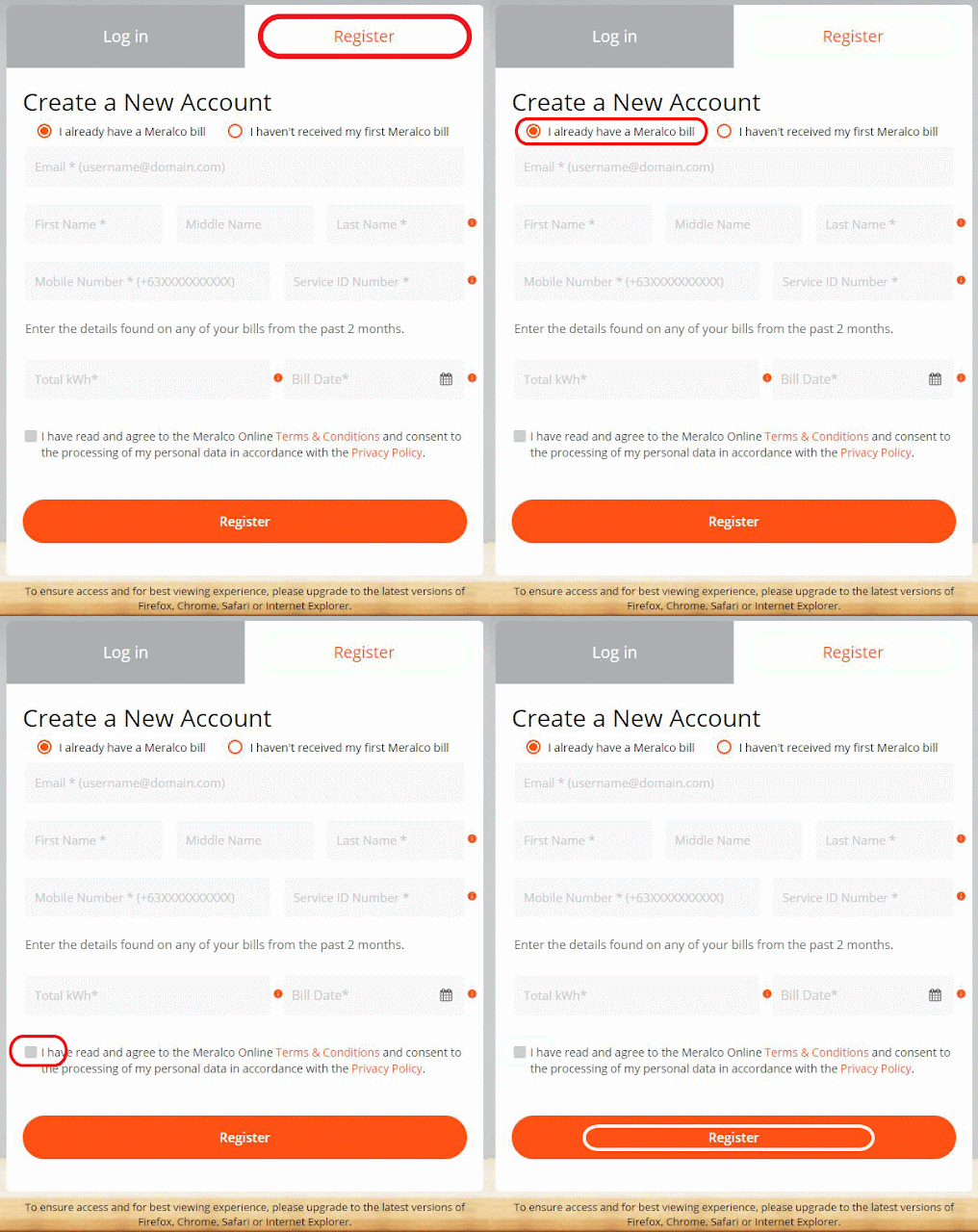


3. Tick that you have read and agree to the Meralco terms and conditions and click REGISTER.

4. You will be asked to double check the information you provided and hit OK. Click REGISTER again. 


5. You will then ask to go to your email and need to click the URL to complete the registration. 


6. This is the sample email that you will receive. You have to click the hyperlink within 30 days or else you have to re-do the process. So make sure that you will nominate an active email and accessible during registration. 


7. After clicking the hyperlink, you will be directed to set your password. You have to be mindful of the parameters needed in setting up your password. In any of those parameters is not met, you will not be able to set the password and have to nominate another password. 


7. If all parameters are met, you will see the orange circles next to the parameters checked. Click Set Password.  


8. If successful, you will be notified that your password has been saved and you can now start using Meralco Online to check your bills. You are all set. You can test or just wait for your email notifications monthly moving forward for your bills.


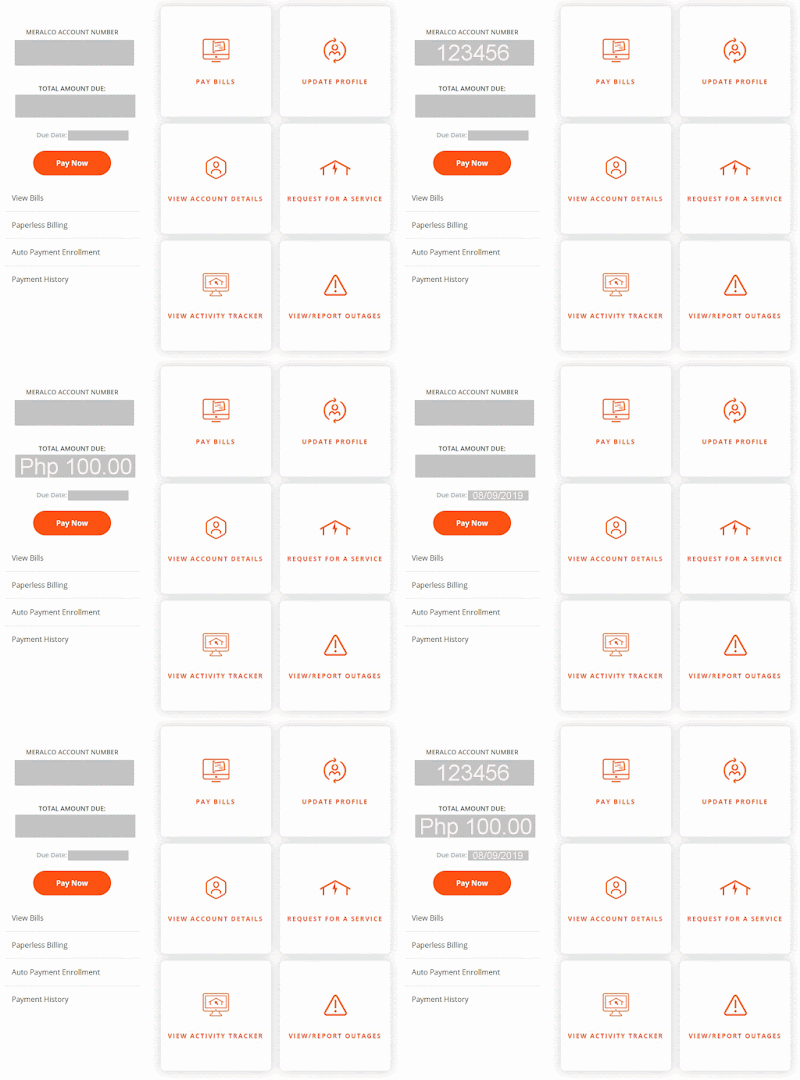
9. When logged in, you will be able to see your Meralco Account Number, Total Amount Due and Due Date. 


9. You can also navigate to View Bills to download your actual bill in PDF format. 


Do you think that this is helpful to your and will going to be helpful to someone? Please share and subscribe to my channel for more Digital World posts that may help you get connected online. 

If you have a Metrobank Direct online, you can click here on how to pay your Meralco bill online. 


Kester Pechardo is the creator of This Digital world. 
He is also a Licensed Financial and Investment Adviser. 
pluk.kester.pechardo@icloud.com
+63 917 374 7559

Thursday, August 15, 2019

Paying Pag-Ibig Amortization via Metrobank Direct


The birth of the Home Development Mutual Fund (HDMF), more popularly known as the Pag-IBIG Fund, was an answer to the need for a national savings program and an affordable shelter financing for the Filipino worker. The Fund was established on 11 June 1978 by virtue of Presidential Decree No. 1530 primarily to address these two basic yet equally important needs. Under the said law, there were two agencies that administered the Fund. The Social Security System handled the funds of private employees, while the Government Service Insurance System handled the savings of government workers.


The Metropolitan Bank and Trust Company, commonly known as Metrobank, is the second largest bank in the Philippines. 


Are you still going to PAGIBIG office to pay your monthly amortization? Or are you still going to line up to banks or other payment facility to pay and sometimes with a processing fee? In this digital world, there are several ways to conveniently pay your bills, buying cellphone air time/sms load and other things, conveniently from your home, anytime, or anywhere. 

There are several other ways to pay your PAGIBIG monthly amortization - over the internet and over the counter facilities. You can pay your it via BDO, BPI, Metrobank and other banks via the internet using their mobile app or on a browser using your laptop, PC, tablet or phone. You can also pay your bills via ATM. Also, you want to try paying via Coins.ph app/browser. 


This particular blog post is your guide in paying your PAGIBIG amortization using a laptop or PC internet browser. Please note that I am using a Google Chrome Browser. You can also use the Internet Explorer, Safari or other browsers. I also assume that you have a sufficient balance from your Metrobank Direct account (Metrobank Online Account). 

I would like to put a note on safety precautions in paying bills online. Since you are using the internet it is always a good idea to do some security checks before doing an online financial transactions. 
  • Do not use public internet cafes PCs when doing banking online transactions. 
  • Do not connect using public wifi while logging in to bank account online. Use your mobile data connection or private wifi. 
  • When logging in, make sure your are getting the correct URL from the bank websites. You can also carefully type the address with HTTPS as internet protocol.
  • If you are using your personal PC, it is always good practice to bookmark the correct internet address of the bank. For future transactions. 

Let's begin!


1. Login to Metrobank Direct: https://personal.metrobankdirect.com/


2. After hitting the send/enter key, you will be redirected to the website's complete address, changing the address bar into to like the picture shown below. A padlock, the Metropolitan Bank and Trust Company [PH], in green text. If not, please do not continue login and call for help.


3. Fill the 'User ID:' and 'Password:' and click Login.


4. From Deposit Accounts tab > eBanking Solutions Left Panel. Click 'Pay Bills'.


5. If your bill is not yet enrolled (I will post another blog on how to enroll your bills from Metrobank Direct; if enrolled you don't have to key in everything manually each time), you can go directly to Special Biller and choose the following:
  • Category: Government
  • Biller: Pag-ibig Fund (Individual)

Fill the following:
  • Subscriber/ Account No.: <Payment Reference No.>
  • Reference No.: <>
  • Phone No.: <Your contact # - Mobile # or Land Line>


You can find the Payment Reference No at the Account Information as shown below: (I will create a separate blog on how to enroll your email address from Pag-Ibig website for you to receive your monthly bills on time directly to your email address)


Select Account to Debit: If you more than one account in your Metrobank Direct, choose which account you want to debit your bill. In this case, I only have one registered and it is automatically chosen. I delete my account # and balance. :)

Enter Amount: Enter the amount due from your current bill. Don't use commas if your bill is more than 999.00. Remember to put ONLY exact amount shown from your bill else you will not be able to continue. 

Select Payment Type: You can pay it Immediate or Scheduled. 
  • Immediate, is when you clicked Continue and confirmed the transaction, it will automatically debited. 
  • Scheduled, is where when you would like to schedule the payment of your bill in on specified date. 
Remarks: You can put a note or remarks.

And click Continue when done.


6. Check and validate if the information is accurate and correct, and enter One Time Password sent to your mobile number, then click 'Confirm'. (If you are not receiving OTP, you may contact your branch of account to have your mobile number added to your account)


7. You will receive your Transaction Reference No. and other information from the Transaction Acknowledgement. It is best to take a screenshot of this window as your payment reference.


8. You are done. You can now logoff from your Metrobank Direct account and will show transaction history for the session. 


If you find this helpful, please share and/or leave a comment. If you have a doubt of what you are doing, you can always dial Metrobank Customer Care Desk at (632) 8700-700. They are available 24 hours, 7 days a week, whole year. 


Kester Pechardo is the creator of This Digital world.
He is also a Licensed Financial and Investment Adviser. 
pluk.kester.pechardo@icloud.com
+63 917 374 7559

Wednesday, April 05, 2017

How To Pay Smart or Sun Bills Online (Metrobank Direct)

Digitel Mobile Philippines, Inc., doing business as Sun Cellular, is a wholly owned subsidiary of Digital Telecommunications Philippines (Digitel), which in turn is owned by PLDT and is one of the Philippines’ largest mobile telecommunications companies. It was established by Digitel in September 2001 to provide wireless public and private telecommunications services. Sun Cellular is known for introducing unlimited call and text services in the Philippines which changed the telecommunications industry.


Smart Communications, Inc., commonly referred to as Smart, is a wholly owned wireless communications and digital services subsidiary of PLDT, Inc.,[1] the Philippines' leading telecommunications and digital services provider. The company has 61.8 million subscribers on its GSM network as of end-September 2016, under the brands Smart, Sun, and TNT. Smart's wireless broadband subscribers number 3.8 million under the brands Smart Bro and Sun Wireless Broadband.


There are several other means to pay your Smart or Sun bills over the internet and over the counter facilities. You can pay your them via BDO, BPI, Metrobank and other banks via the internet using their online portal on a browser using your laptop, PC, tablet or phone. You can also pay it through their mobile apps; although I have not created a blog for that yet, but I will create an entry next month. You can also pay your bills via ATM. Also, you want to try paying via Coins.ph app/browser. 


I would like to put a note on safety precautions in paying bills online. Since you are using the internet it is always a good idea to do some security checks before doing an online financial transactions. 
  • Do not use public internet cafes PCs when doing banking online transactions. 
  • When logging in, make sure your are getting the correct URL from the bank websites. You can also carefully type the address with HTTPS as internet protocol.
  • If you are using your personal PC, it is always good practice to bookmark the correct internet address of the bank. For future transactions. 
Let's begin!


1. Login to Metrobank Direct: https://personal.metrobankdirect.com/


2. After hitting the send/enter key, you will be redirected to the website's complete address, changing the address bar into to like the picture shown below. A padlock, the Metropolitan Bank and Trust Company [PH], in green text. If not, please do not continue login and call for help.


3. Fill the 'User ID:' and 'Password:' and click Login.


4. From Deposit Accounts tab > eBanking Solutions Left Panel. Click 'Pay Bills'.


5. If your bill is not yet enrolled (I will post another blog on how to enroll your bills from Metrobank Direct; with this, when paying you don't have to key in everything manually every time), you can go directly to Special Biller and choose the following:
  • Category: Telco
  • Biller: SMART OR SUN CELLULAR

Fill the following:
  • Subscriber/ Account No.: <Your Account number>
  • Reference No.: <>
  • Phone No.: <Your contact # - Mobile # or Land Line>

Select Account to Debit: If you more than one account in your Metrobank Direct, choose which account you want to debit your bill. In this case, I only have one registered and it is automatically chosen. I delete my account # and balance. :)

Enter Amount: Enter the amount due from your current bill. Don't use commas if your bill is more than 999.00. Remember to put ONLY exact amount shown from your bill else you will not be able to continue. 

Select Payment Type: You can pay it Immediate or Scheduled. 
  • Immediate, is when you clicked Continue and confirmed the transaction, it will automatically debited. 
  • Scheduled, is where when you would like to schedule the payment of your bill in on specified date. 
Remarks: You can put a note in anything you want.
And you click Continue when done. 

6. Check and validate if the information is accurate and correct, click 'Confirm'.


7. You will receive your Transaction Reference No. and other information from the Transaction Acknowledgement. It is best to take a screenshot of this window as your payment reference.


8. You are done. You can now logoff from your Metrobank Direct account and will show transaction history for the session. 


If you find this helpful, please share and/or leave a comment. You have a doubt of what you are doing, you can always dial Metrobank Customer Care Desk at (632) 8700-700. They are available 24 hours, 7 days a week, whole year. 

You can also download COINSph from your android and ios devices and get 50.00 signup bonus from my link here! You can use this to buy loads, pay bills and more! 


Kester Pechardo is the creator of This Digital world.. 
He is also a Licensed Financial and Investment Advisor. 
pluk.kester.pechardo@icloud.com
+63 917 374 7559


Featured Post

Meralco Bill Online: View and Download Your Bill On Time

The Manila Electric Company, also known as Meralco (stylized in its logo as MERALCO), is the Philippines' largest distributor of el...